Element Right Panel
The element right panel is the panel inside a document that currently houses the BOM, configurations, etc. Applications can use this extension location to add items in this panel.
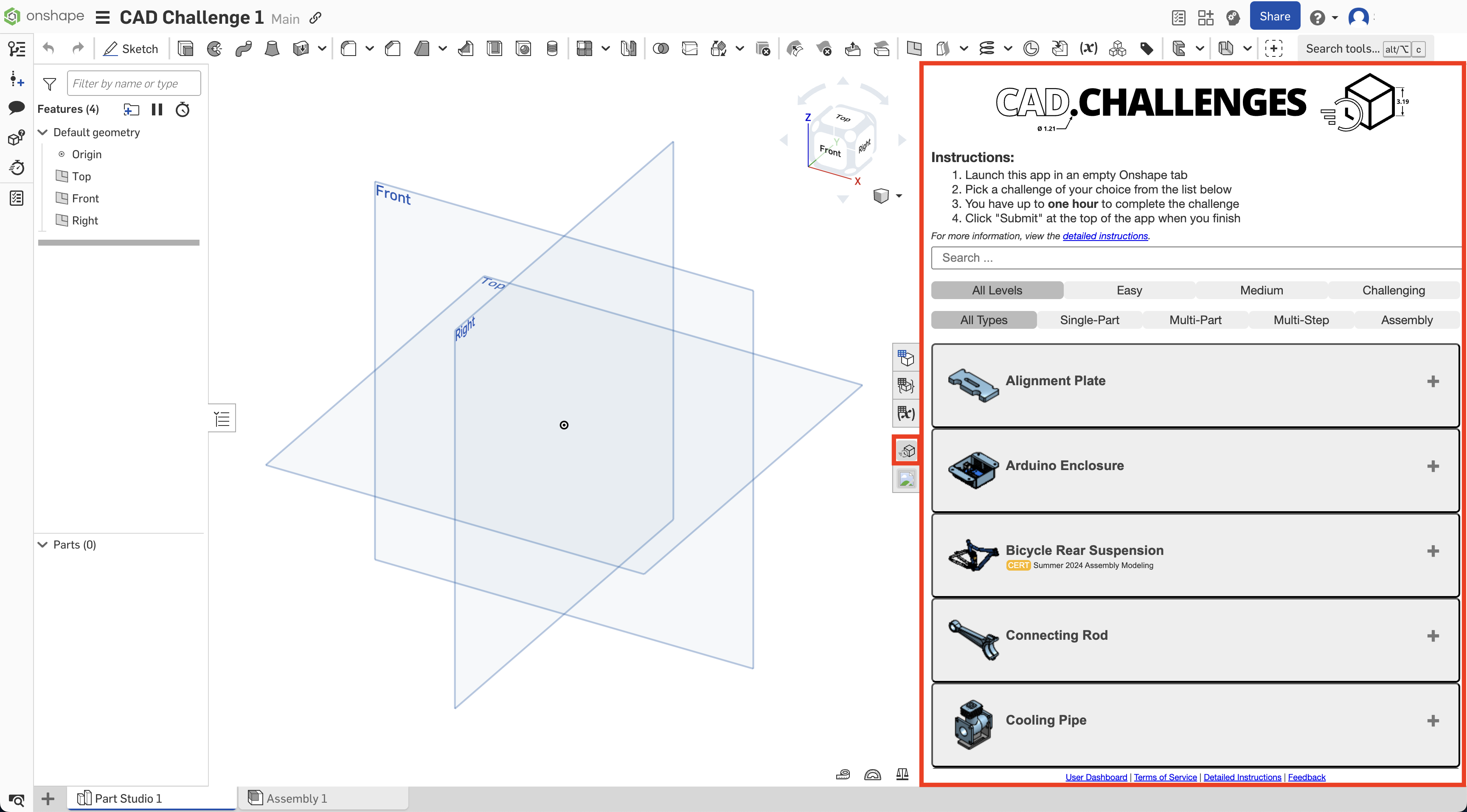
Interaction sequence
The sequence diagram below illustrates the interaction between an Element right panel application extension and the Onshape client:
%%{
  init: {
    "theme": "default",
    "sequence": {
      "mirrorActors": false,
      "showSequenceNumbers": false,
      "width": 75,
      "height": 60,
      "actorMargin": 25,
      "messageFontSize": 13,
      "messageFontFamily": "monospace",
      "messageFontWeight": 2
    }
  }
}%%
sequenceDiagram
  actor user
  participant OSC AS Onshape Client
  participant AE AS Application Extension
  user->>+OSC: start element right panel extension
  Note right of user: via configured button
  OSC->>+AE: invoke action url (with query params)
  AE->>OSC: postMessage(messageName: 'applicationInit')
  loop selection interactions
    user->>OSC: select
    OSC->>AE: postMessage(messageName: 'SELECTION')
  end
  user->>OSC: stop element right panel extension
    Note right of user: via configured button
  deactivate AE
  OSC-XAE: destroy
  deactivate OSC
Supported messages
Each message must include:
message = {
    documentId: documentId,
    workspaceId: workspaceId,
    elementId: elementId,
    messageName: string
}
Where messageName corresponds to one of the supported client messages below:
applicationInit
Send once on application startup.
message = {
    documentId: documentId,
    workspaceId: workspaceId,
    elementId: elementId,
    messageName: 'applicationInit'
}
showMessageBubble
Display a string in the blue message bubble at the top of the application extension.
message = {
    documentId: documentId,
    workspaceId: workspaceId,
    elementId: elementId,
    messageName: 'showMessageBubble',
    message: 'This is a message.'
}
requestViewerImage
Take a screenshot of the current window at the provided image size.
message = {
    documentId: documentId,
    workspaceId: workspaceId,
    elementId: elementId,
    messageName: 'requestViewerImage',
    height: 400,
    width: 400
}
The screenshot is returned as a Blob (see Blob Documentation) in the JSON response:
{
  "messageName": "viewerImage",
  "image": Blob
}
requestSelection
Wait for the user to select the specified entity in the Onshape UI.
This example waits for the user to select 3 faces.
message = {
    documentId: documentId,
    workspaceId: workspaceId,
    elementId: elementId,
    messageName: 'requestSelection',
    messageId: string,
    entityTypeSpecifier: ['FACE'],
    requiredSelectionCount: 3
}
Notes
messageIdis a unique identifierentityTypeSpecifiermust be at least one of:entityTypeSpecifier { 'VERTEX', 'EDGE', 'FACE', 'BODY', 'DEGENERATE_EDGE', 'UNKNOWN' }requiredSelectionCountis the count of selections required to transition fromStatusCode.PENDINGtoStatusCode.SUCCESS. When not included or0:- An unbounded selection count is used
- A
stopRequestmessage is required to transition from aStatusCode.PENDINGtoStatusCode.STOPPED - The
stopRequestresponse includes the original request’smessageIdasstoppedMessageId
requestSelectionHighlight
Highlights the specified entity in the Onshape window. This example highlights the face with ID JHO.
message = {
    documentId: documentId,
    workspaceId: workspaceId,
    elementId: elementId,
    messageName: 'requestSelectionHighlight',
    messageId: string,
    selections: [{
        "selectionType": "ENTITY",
        "selectionId": "JHO",
        "entityType": "FACE"
    }]
}
Notes
messageIdis a unique identifier- If a
stopRequestis called, its response includes the original request’smessageIdasstoppedMessageId
- If a
selectionTypemust be one of:selectionType = [ 'ENTITY', 'BODY', 'GEOMETRY' ]- Call getPartStudioBodyDetails to get the
selectionId - When
selectionType = ENTITY,entityTypeis required:entityType = [ 'VERTEX', 'EDGE', 'FACE', 'BODY', 'DEGENERATE_EDGE', 'UNKNOWN' ] - When
selectionType = BODY,bodyTypeis required:bodyType = [ 'SOLID', 'SHEET', 'WIRE', 'POINT', 'MATE_CONNECTOR', 'COMPOSITE', 'UNKNOWN' ] - When
selectionType = GEOMETRY,geometryTypeis required:geometryType = [ 'LINE', 'CIRCLE', 'ARC', 'PLANE', 'CYLINDER', 'CONE', 'SPHERE', 'TORUS', 'SPLINE', 'ELLIPSE', 'MESH', 'CONIC', 'REVOLVED', 'EXTRUDED', 'ALL_MESH', 'MIXED_MESH', 'SPLINE_INTERNAL_POINT', 'SPLINE_CONTROL_POLYGON', 'ELLIPTICAL_ARC', 'UNKNOWN' ]
stopRequest
Transitions a request from StatusCode.PENDING to StatusCode.STOPPED. The response includes the original request’s messageId as stoppedMessageId.
message = {
    documentId: documentId,
    workspaceId: workspaceId,
    elementId: elementId,
    messageName: 'stopRequest'
}
openAnotherElementInCurrentWorkspace
Open the specified element (tab).
message = {
    documentId: documentId,
    workspaceId: workspaceId,
    elementId: elementId,
    messageName: 'openAnotherElementInCurrentWorkspace',
    anotherElementId: elementId2
}
openFeatureDialog
Open the dialog for the specified feature.
message = {
    documentId: documentId,
    workspaceId: workspaceId,
    elementId: elementId,
    messageName: 'openFeatureDialog',
    featureId: featureId
}
To get the featureId call PartStudio/getPartStudioFeatures or Assembly/getFeatures.
closeFeatureDialog
Closes any open feature dialog
message = {
    documentId: documentId,
    workspaceId: workspaceId,
    elementId: elementId,
    messageName: 'closeFeatureDialog',
    accept: false
}
accept=true mimics closing the dialog by clicking the green check mark or Accept button. accept=false mimics closing the dialog by clicking the X or Cancel button to close without saving.
openSelectItemDialog
Opens a dialog in which the user can select one or more blobs, parts, Part Studios or assemblies.
message = {
    documentId: documentId,
    workspaceId: workspaceId,
    elementId: elementId,
    messageName: 'openSelectItemDialog',
    dialogTitle?: '',
    selectAssemblies?: false,
    selectBlobs?: false,
    selectBlobMimeTypes?: '',
    selectMultiple?: false,
    selectParts?: false,
    selectPartStudios?: false,
    showBrowseDocuments?: true,
    showStandardContent?: false
}
Notes
- Selection booleans default to
false; set totrueto include the specified item type in the dialog. - The default
dialogTitleis an empty string (''). selectBlobMimeTypesis a comma-delimited string of blob mime types to show in the dialog (e.g.'application/dwt,application/dwg'). Defaults to an empty string ('').- Set
showBrowseDocuments=falseto hide theOther documentschoice in the dialog. - Set
showStandardContent=trueto allow the user to select Standard Content options.
See also:
closeSelectItemDialog
Closes the Select Item dialog.
message = {
    documentId: documentId,
    workspaceId: workspaceId,
    elementId: elementId,
    messageName: 'closeSelectItemDialog'
}
See also:
errorReload
Displays a custom message in a message bubble. Forces the user to reload the document or return to the documents page.
message = {
    documentId: documentId,
    workspaceId: workspaceId,
    elementId: elementId,
    messageName: 'errorReload',
    message: 'Your connection lost message.'
}
keepAlive
Sends periodically while the user is actively working to avoid the session from timing out.
message = {
    documentId: documentId,
    workspaceId: workspaceId,
    elementId: elementId,
    messageName: 'keepAlive'
}
Received messages
The following messages can be received by element right panel extensions:
itemSelectedInSelectItemDialog
Sent when an item (blob, part, Part Studio, or assembly) is selected by the user in the Select item dialog.
{
  messageName: 'itemSelectedInSelectItemDialog',
  documentId: string,
  documentMicroversionId: string,
  workspaceId: string, // sends workspaceId OR versionId
  versionId: string,  // sends workspaceId OR versionId
  elementId: string,
  elementName: string,
  elementType: string,
  elementMicroversionId: string,
  elementConfiguration: string,
  itemType: string,
  partName?: string,
  idTag?: string,
  includeSurfaces?: boolean,
  includeWires?: boolean,
  isSurface?: boolean,
  isFlattenedBody?: boolean,
  isComposite?: boolean,
  isSketch?: boolean,
  sketchIds?: string[],
  partNumber?: string, // only returned if a part is selected
  revision?: string,
  context?: string,
  isConfigurable?: boolean
}
See also:
selectItemDialogClosed
Sent when the Select item dialog closes. Occurs when one of the following happens:
- User selected an item and
selectMultiple=false - User changed the active element tab.
- User closed the dialog with the X button.
{
  messageName: 'selectItemDialogClosed',
  context?: string
}
See also:
Security considerations
The extension security considerations apply to all Onshape extensions. Additionally:
- An initial
applicationInitmessage must be sent from the application extension to the Onshape client to ensure Onshape does not send messages to the extension until it is ready. - Once a valid
applicationInitmessage is received by the Onshape client, it starts sending messages withmessageName=SELECTIONupon user selection interactions. - Prior to accepting any message from the Onshape client as secure, the
originattribute value included in incoming messages must be validated as equal to the originalserverquery parameter value used to load the application extension.